
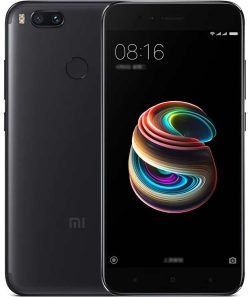
Xiaomi 14T Pro Flash File
Download Xiaomi 14T Pro (codename rothko) official stock firmware. Powered by MediaTek Dimensity 9300+. Available regions: Global, Europe (EEA), China Beta, India, Japan. Includes Fastboot ROM (.tgz),...
301 views
0 downloads
Available Downloads
Loading files...
Full Specifications
Fastboot Flash Update Guide
| Step 1 – Download Flash Tool | Download and install the newest version of Mi Flash Tool on your computer. Use the official application that supports Xiaomi Fastboot mode. |
| Step 2 – Download Firmware Fastboot | Choose the Fastboot firmware that matches your device region, such as: Global, EEA, India, China, Indonesia. Ensure the firmware file has a .tgz extension. If the file is still in .gz format, rename it to .tgz before extracting. |
| Step 3 – Enter Fastboot Mode | Turn off the device completely. Press and hold Volume Down + Power buttons at the same time. After entering Fastboot Mode, connect the device to your PC using a USB cable. |
| Step 4 – Extract Firmware | Extract the downloaded firmware using WinRAR or 7-Zip. Open the extracted firmware folder. Copy the folder path location. |
| Step 5 – Flash Firmware via Mi Flash Tool | Install and launch the MiFlash application. Paste the firmware folder location into the MiFlash path field. Click the Refresh button so the device gets detected. Once the device appears, click the Flash button to start the flashing process. |
| Step 6 – Wait Until Finished | The flashing process will take several minutes. If the progress bar turns green and Success status appears, the flashing is successful. The device will automatically restart to the new system. |
Additional Notes
| 1 | If MiFlash fails to detect your device, reinstall Xiaomi or Qualcomm drivers. |
| 2 | For certain device models, flashing can only be performed after unlocking the bootloader. |
| 3 | It is recommended to use a USB port directly from the PC motherboard for a more stable connection. |
Warning
| see | Any risk of damage caused by flashing errors is the sole responsibility of the user. Do at your own risk. |
Required Drivers
| driver1 | Xiaomi USB Driver - Required for all Xiaomi devices |
| driver2 | Qualcomm HS-USB QDLoader 9008 Driver - For Qualcomm chipset devices |
| driver3 | Google USB Driver - For ADB and Fastboot commands |
| driver4 | MediaTek VCOM Driver - For MediaTek chipset devices |
Driver Installation Steps
| step1 | Download the Xiaomi USB Driver file from official source |
| step2 | Extract the downloaded .rar or .zip file using WinRAR |
| step3 | Open Device Manager by right clicking on This PC > Manage > Device Manager |
| step4 | Locate your device showing as unknown or with yellow mark |
| step5 | Right click and select Update driver |
| step6 | Choose Browse my computer for drivers |
| step7 | Select the extracted driver folder and click Next |
| step8 | Wait for installation to complete |
| step9 | Restart your PC after installation |
Qualcomm Driver Installation
| step1 | Download Qualcomm HS-USB QDLoader 9008 driver |
| step2 | Run the setup.exe file as Administrator |
| step3 | Follow the on-screen instructions (Next > Next > Install) |
| step4 | Click Finish when done |
| step5 | Restart your computer |
MediaTek Driver Installation
| step1 | Download SP Flash Tool which includes MTK drivers |
| step2 | Open the driver folder inside SP Flash Tool |
| step3 | Run MTK_Driver_Auto_Installer.exe as Administrator |
| step4 | Click the Install Driver button |
| step5 | Wait for success message |
| step6 | Restart your computer |
Before Driver Installation Tips
| tip1 | Disable Windows Driver Signature Enforcement if required |
| tip2 | Remove any old or conflicting drivers first |
| tip3 | Always run installer as Administrator |
| tip4 | Use a good quality original USB cable |
| tip5 | Connect to USB 2.0 port directly on motherboard |
| tip6 | Restart PC after every driver installation |
How to Check Driver is Working
| method1 | Open Device Manager while device is connected in Fastboot mode |
| method1_result | You should see Android Phone or Kedacom USB Device without yellow mark |
| method2 | Open Command Prompt and type: fastboot devices |
| method2_result | If a device serial number appears, driver is working properly |
| method3 | Open Mi Flash Tool and click Refresh |
| method3_result | Your device COM port or device ID should appear in the list |
Troubleshooting Driver Issues
| problem1 | Device shows as Unknown in Device Manager |
| solution1 | Manually install driver by pointing to the extracted driver folder |
| problem2 | Driver Signature Error appears on Windows 10 or 11 |
| solution2 | Disable driver signature enforcement from Advanced Startup options |
| problem3 | MiFlash does not detect device after clicking Refresh |
| solution3 | Change USB port, reconnect cable, restart MiFlash, or restart PC |
| problem4 | Device is stuck in Fastboot mode |
| solution4 | Press and hold Volume Down + Power for 10-15 seconds to restart |
| problem5 | Yellow exclamation mark in Device Manager |
| solution5 | Uninstall the driver, restart PC, then reinstall fresh driver |
How to Disable Driver Signature Enforcement Windows 10 and 11
| step1 | Open Settings > Update & Security > Recovery |
| step2 | Under Advanced startup, click Restart now |
| step3 | After restart, click Troubleshoot |
| step4 | Click Advanced Options |
| step5 | Click Startup Settings |
| step6 | Click Restart |
| step7 | Press 7 or F7 on keyboard for Disable driver signature enforcement |
| step8 | PC will restart. Now install drivers normally |
Pre-Flashing Checklist
| check1 | Xiaomi USB Driver installed and working |
| check2 | Device can enter Fastboot mode successfully |
| check3 | Mi Flash Tool installed on PC |
| check4 | Correct Fastboot firmware .tgz file downloaded |
| check5 | Firmware extracted to a folder |
| check6 | Original USB cable available |
| check7 | Battery level above 50 percent |
| check8 | Important data backed up (all data will be erased) |
| check9 | Bootloader unlocked if required for your model |
| check10 | PC running as Administrator |
Final Summary
| summary | First install Xiaomi USB Driver and Qualcomm or MediaTek drivers. Restart your PC. Then open Mi Flash Tool, paste firmware path, click Refresh, and start flashing. If device is not detected, disable driver signature enforcement and reinstall drivers. |
Xiaomi 14T Pro Flash File - Description
Download Xiaomi 14T Pro (codename rothko) official stock firmware. Powered by MediaTek Dimensity 9300+. Available regions: Global, Europe (EEA), China Beta, India, Japan. Includes Fastboot ROM (.tgz), Recovery ROM (.zip) & OTA updates. Latest HyperOS 3 with Android 16. 100% tested solution for dead boot repair, FRP bypass, hang logo fix. Flash using Mi Flash Tool or recovery.
Tags:
#Xiaomi14TPro #Rothko #Xiaomi14TProFirmware #HyperOS3 #Dimensity9300Plus #FastbootROM #RecoveryROM #DeadBootRepair #FRPBypass #MiFlashTool #GlobalROM #EuropeROM #ChinaROM #Android16
Tags:
#Xiaomi14TPro #Rothko #Xiaomi14TProFirmware #HyperOS3 #Dimensity9300Plus #FastbootROM #RecoveryROM #DeadBootRepair #FRPBypass #MiFlashTool #GlobalROM #EuropeROM #ChinaROM #Android16






Comments (0)